
To use Eque2 EValuate on a new computer, first install the software, then enter the SQL configuration to connect to the database.
Install Eque2 EValuate
To download and install Eque2 EValuate on the new computer.
- Download EValuate from the following website - EValuate Downloads
Note: We recommend installing the latest version of EValuate, which is currently:- EValuate 6.0.12
When downloading the software, select the Version drop-down and select the relevant option.
For Variant, select the variant that also matches your current installation:
(to update from an earlier version, see the guide Updating EValuate for details on installing the latest version.)32 bit will show (x86) next to the version number 
64 bit will show (x64) next to the version number 
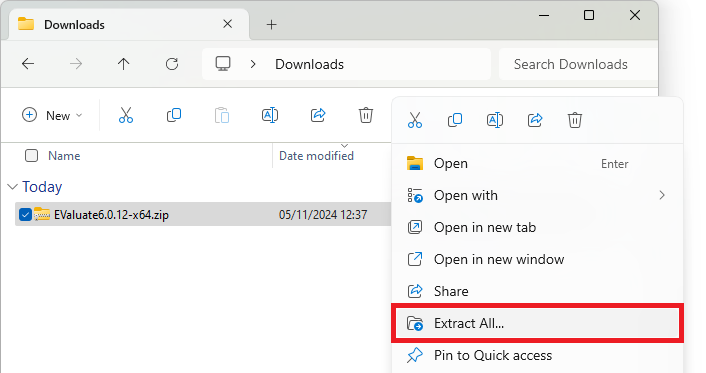
- Once downloaded right click and click Extract All to unzip the zip file:
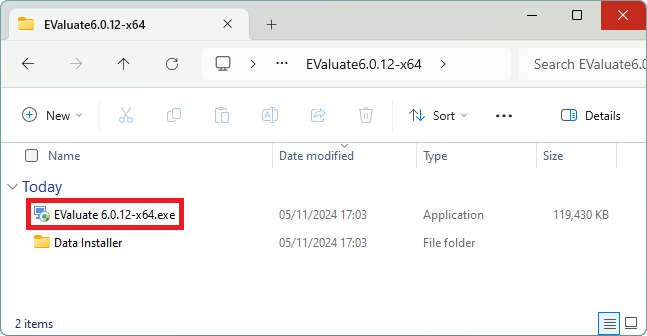
- Open the unzipped folder and run the EValuate setup file, for example:
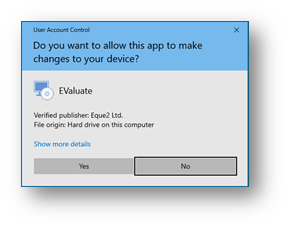
- Accept any security prompts displayed from Windows.
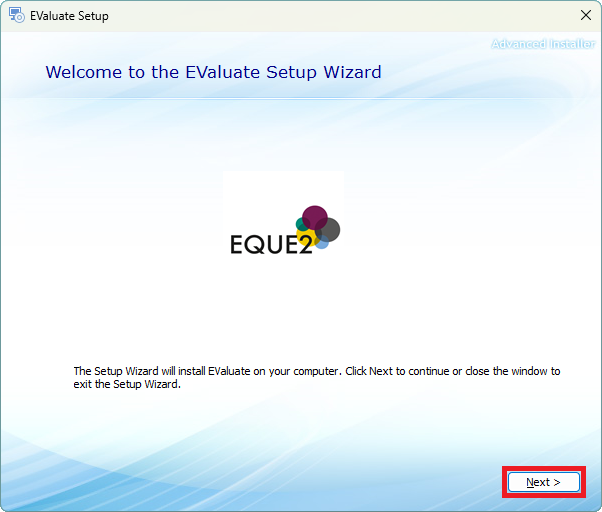
- The Welcome to the EValuate Setup Wizard opens, click Next:
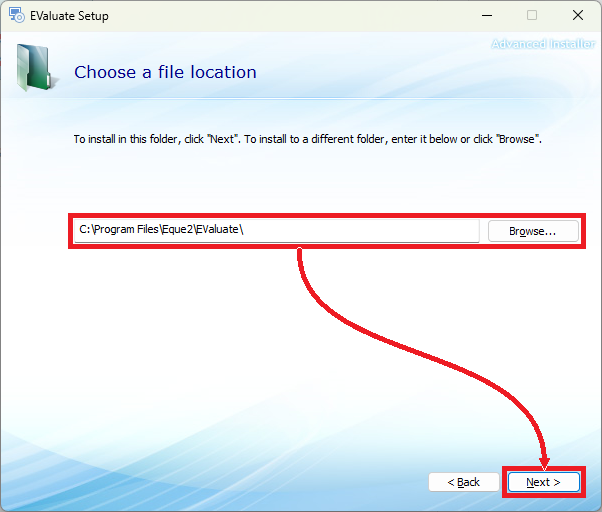
- The installation path appears, if happy, click Next.
Note: You can amend this if required, however we recommend leaving this path as the default location.
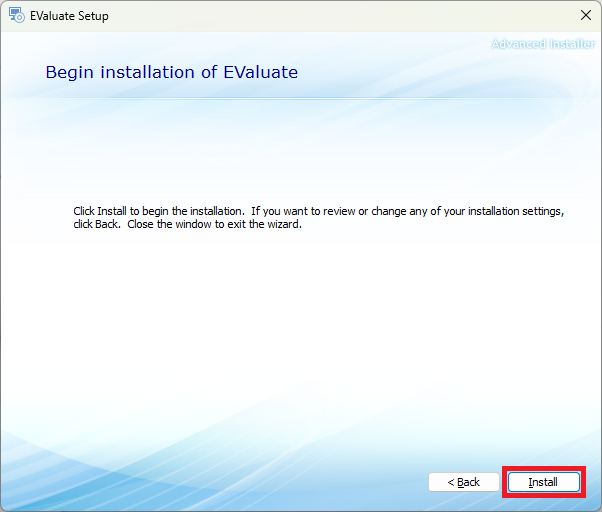
- Click Install to begin the installation.
- Once installed click Close to exit the Installation Wizard.
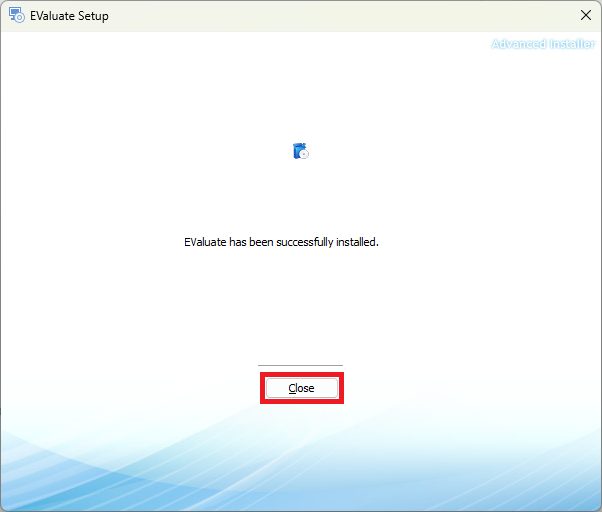
Evaluate is now installed. You now need to configure the SQL connection.
SQL Configuration
There are two ways you can configure the SQL configuration. You can either copy the settings from an existing installation, or configure them manually.
From an existing EValuate installation
To make life easier, it is possible to save the existing SQL configuration from an existing installation and transfer them to your new installation.
Save the SQL configuration from the existing installation
On an existing installation, save the Connection Key and transfer it to the computer with your new installation:
- Find the version of EValuate in use.
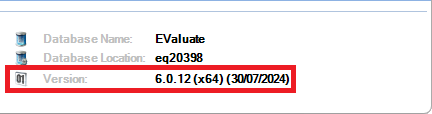
This displays at the bottom of the EValuate homepage and also indicates if a 32-bit (x86) or 64-bit (x64) variant is used.
For example: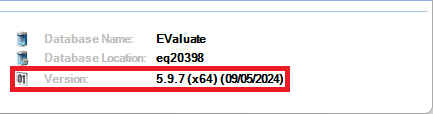
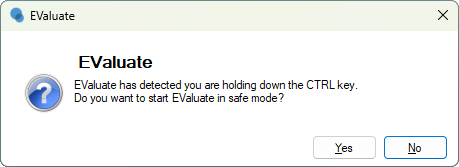
- On your keyboard, hold down the CTRL key when opening EValuate, then click Yes to open EValuate in safe mode:

- In the Server Configuration tab click Configure:
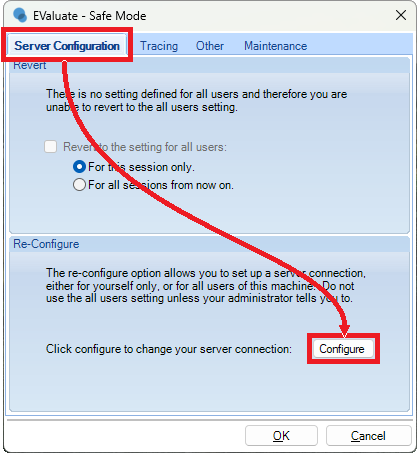
- Click the Connection Key tab then click Save.
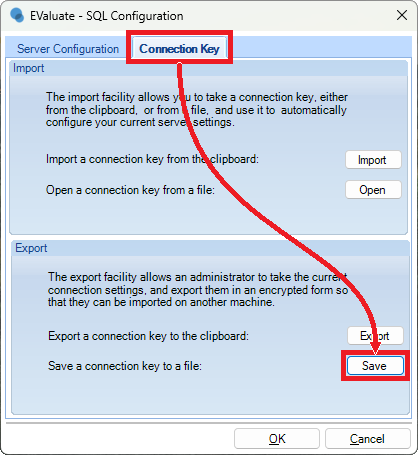
- Select the location to save the file, enter a File name and click Save:

You can now transfer this file to the computer where your new installation is held.
Note: If EValuate is being setup for a new user please see the related articles which detail how to setup new usernames:
Load the SQL configuration into the new installation
- On your keyboard, hold down the CTRL key when opening EValuate, then click Yes to open EValuate in safe mode:
- In the Server Configuration tab click Configure:
- Click the Connection Key tab and click Open.
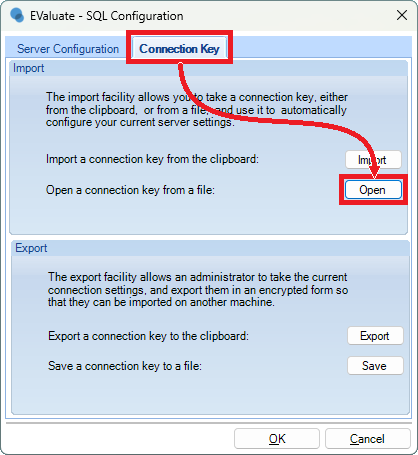
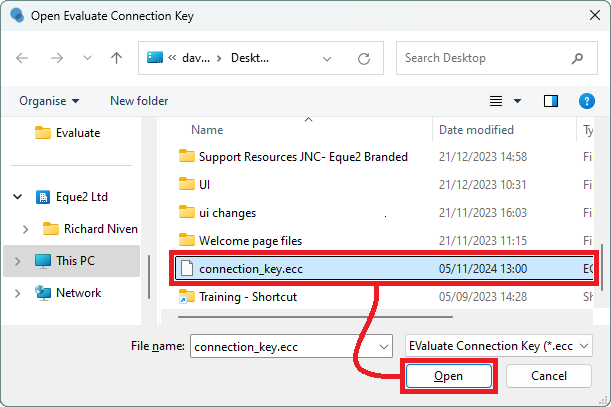
- Browse to the connection key file saved earlier then click Open.
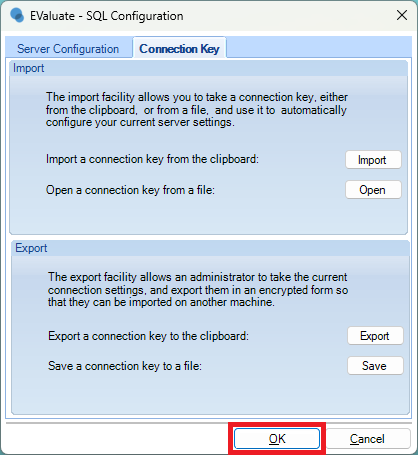
- Click OK on the SQL Configuration window.
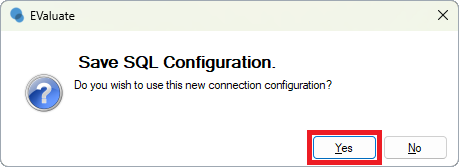
- In the Save SQL Configuration window click Yes.
- In the Restart Application window click OK.

- Select OK to close the Safe Mode window.
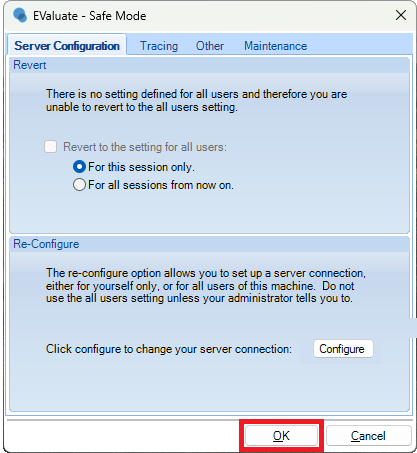
EValuate has now been installed and configured to connect to your database.
Configure SQL manually
- When you first open EValuate, select the prompt to open the SQL Configuration Menu.
Note: If this does not appear or you want to change the SQL Configuration on an existing installation, on your keyboard, hold down the CTRL key when opening EValuate, then click Yes to open EValuate in safe mode.
- In the Server Configuration tab click Configure.
- In the Server Configuration tab click Refresh then select the server name from the dropdown.
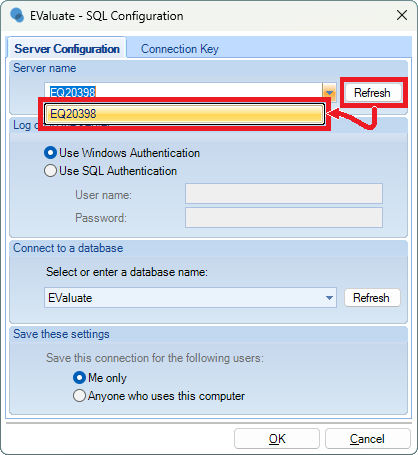
Alternatively, manually enter the server name into the Server name field.
Note: The server name follows the following structure:
- Server machine\SQL instance
For example - SQLServer\SQL_instance
- Click Use SQL Authentication and enter your SQL admin login.
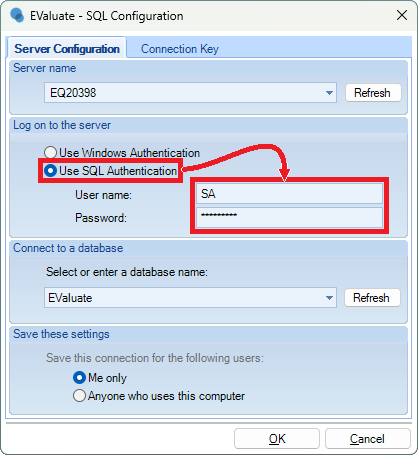
The default administrator username is SA and the default password is Gemini123.
If these credentials do not work then please contact your IT support for the SQL administrator login.
Note: Alternatively, the Use Windows Authentication method does work if the current signed in Windows User is linked to an Evaluate user. Find out how to link the Windows user to an EValuate user > - Once the authentication method is entered, to connect to the database, next to the database dropdown click Refresh and the database appears in the dropdown.
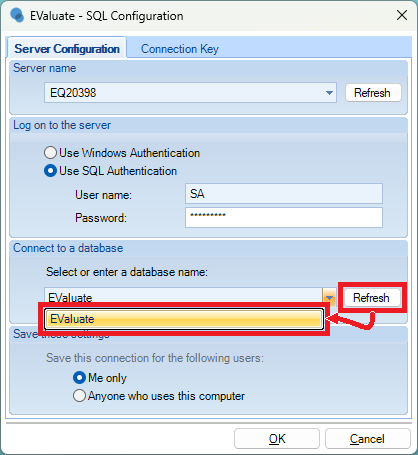
Alternatively, you can manually enter the database name into this field.
- Click OK.