If EValuate is used on a domain with an Active Directory this can be used to log into the application using Windows credentials. To create a new user please follow the steps below.
When using Active Directory users in combination with configuring emails in Evaluate, please ensure the Active Directory users have an email address assigned.
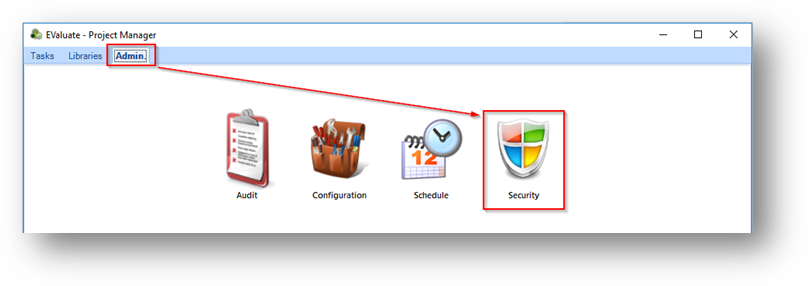
1. Select Admin > Security:
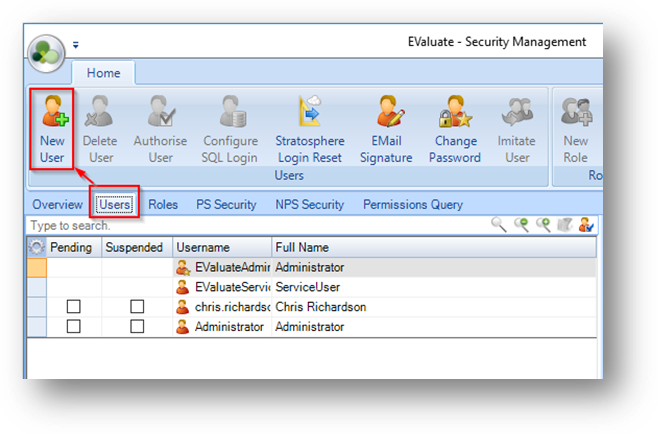
2. Select the Users tab > New User:
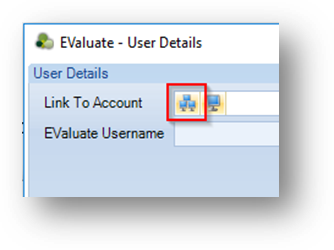
3. Select the workgroup icon:
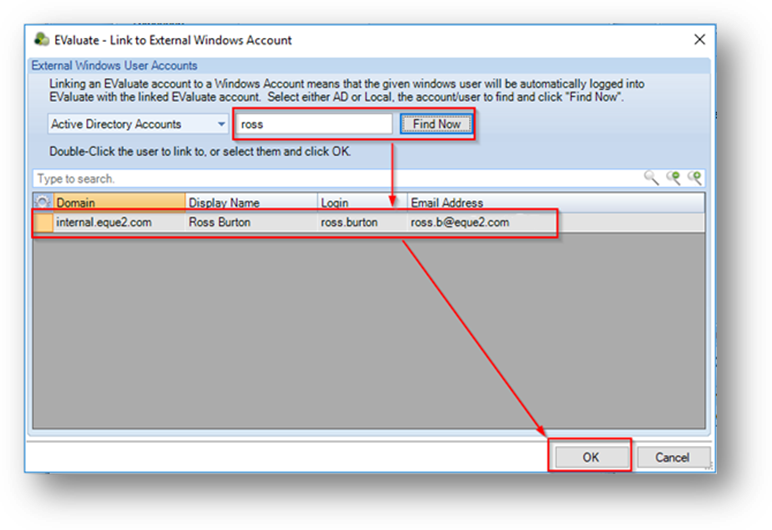
4. Enter all or part of the Active Directory name and select Find Now. Highlight the user and select OK.
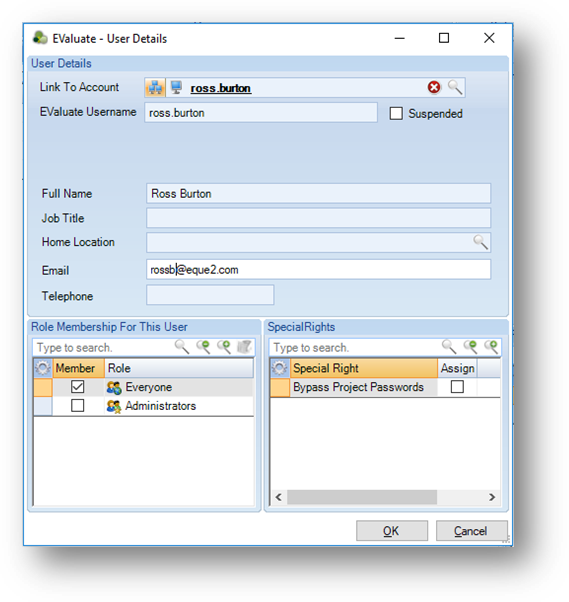
5. Additional information for the user can now be entered if required. This can also be entered at a later time:
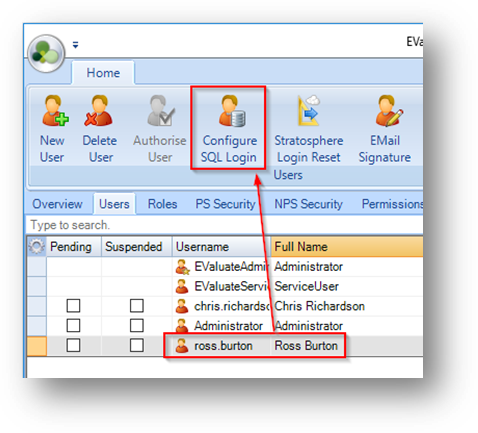
6. Now that the EValuate user has been created they must be given access to the SQL database. To do this highlight the user and select Configure SQL Login:
The user has now been successfully created.
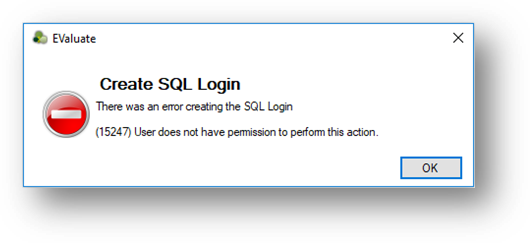
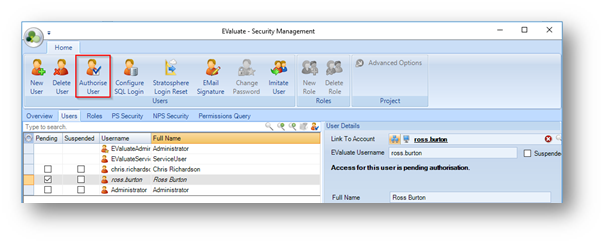
If a user has already attempted to open EValuate before their login is setup there will be a pending account created. From Admin > Security > Users you can highlight this and select Authorise User.